
A useful AI email template is not a blank prompt. It is a campaign email with structure. You decide what must stay consistent, then give AI a small, clear section where recipient context can improve the message.
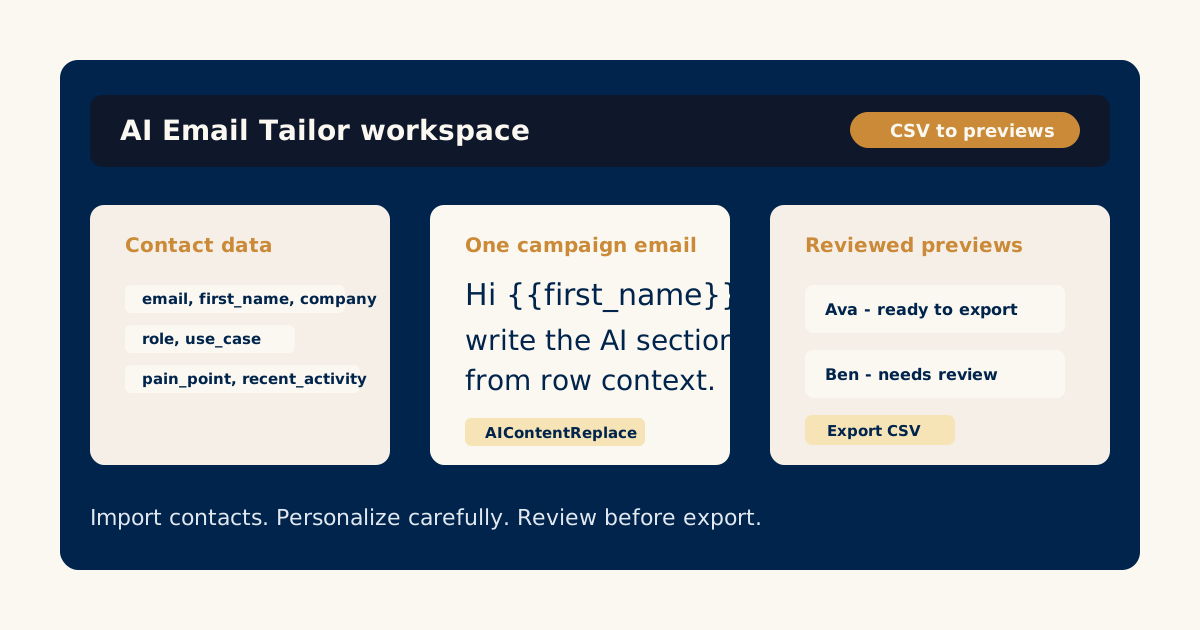
That is the idea behind AI Email Tailor’s template workflow. The product supports ordinary merge fields like {{first_name}} and AI-editable sections that can use row context to create recipient-specific draft text.
The point is control. You are not asking AI to invent the whole campaign. You are asking it to adapt the right part.
Start with the fixed campaign message
Before adding any dynamic section, write the email as if it were going to one person in the target audience.
Include:
- A subject line.
- A greeting.
- The core reason for the email.
- One useful point or offer.
- A clear next step.
- The sender signoff.
This gives the AI section a stable home. It also prevents the generated text from carrying the whole message by itself.
For a CSV-driven workflow, read how to create personalized email campaigns from a CSV first. The available columns should shape how ambitious your dynamic section can be.
Choose one section for AI to adapt
The most common mistake is making too much of the email dynamic. That can create inconsistent drafts and make review harder.
Start with one short section:
Subject: Quick idea for {{company}}

Hi {{first_name}},

<AIContentReplace instruction="Write two concise sentences using this contact's company, role, and pain point. Keep the tone practical and do not repeat the greeting.">
I noticed your team is working on a relevant challenge.
</AIContentReplace>

The main idea is...
This is specific enough to guide the model and narrow enough for a human reviewer to inspect quickly.
Give the AI section a job
Good instructions describe the job of the section. Weak instructions describe a vibe.
Instead of:
make this personalized and friendly
Try:
Write two concise sentences using the contact’s company and pain point. Connect that context to the campaign’s main message. Avoid making claims that are not in the row data.
That instruction tells AI what to use, how long to write, and what to avoid.
Keep merge fields readable
Merge fields are still useful. They are best for exact data: name, company, role, plan, region, or a known date.
Use AI for the connective tissue:
- Why this message matters to the recipient.
- Which example fits their context.
- How to transition from their situation into your offer.
- How to make the opening sentence less generic.
Use merge fields for facts. Use AI for phrasing around those facts.
Preview before trusting the template
Even a good template needs real previews. Generate a few recipient drafts and read them as emails, not as model outputs.
Ask:
- Does the dynamic section fit the fixed copy around it?
- Is the tone consistent across recipients?
- Does it use only the data provided?
- Is the email still clear when a row has sparse context?
- Would the reviewer know what to edit?
The next guide, how to review AI-generated email previews, walks through that review pass.
Build templates that help reviewers
A good AI email template makes review easier. The fixed parts carry the campaign. The dynamic section is short enough to inspect. The recipient context is visible enough to explain why the draft changed.
That is the practical standard: not maximum automation, but better drafts that humans can approve faster.
Explore AI Email Tailor workflows and build the first template around one campaign you already understand.
Try the workflow
Start with one real campaign email.
Bring a contact CSV, write the core message once, and use AI Email Tailor's preview and review flow to decide what is ready to export.
Related AI Email Tailor guides
Keep improving the campaign workflow.
 CSV Campaigns
How to Create Personalized Email Campaigns from a CSV
A practical guide to turning CSV contact data into personalized campaign email drafts without treating every recipient the same.
Read the guideReview WorkflowHow to Review AI-Generated Email Previews Before Export
A review checklist for AI-generated recipient emails: check context, tone, accuracy, repetition, and export readiness.
Read the guideExport WorkflowHow to Export Personalized Emails for Campaign Tools
A practical guide to preparing reviewed AI-personalized emails for export into an email platform, CRM sequence, or mail merge workflow.
Read the guide