
Export is where personalized email work becomes operational. The draft is no longer just something to read on screen. It has to move into the next tool without losing the subject, body, recipient, or review status.
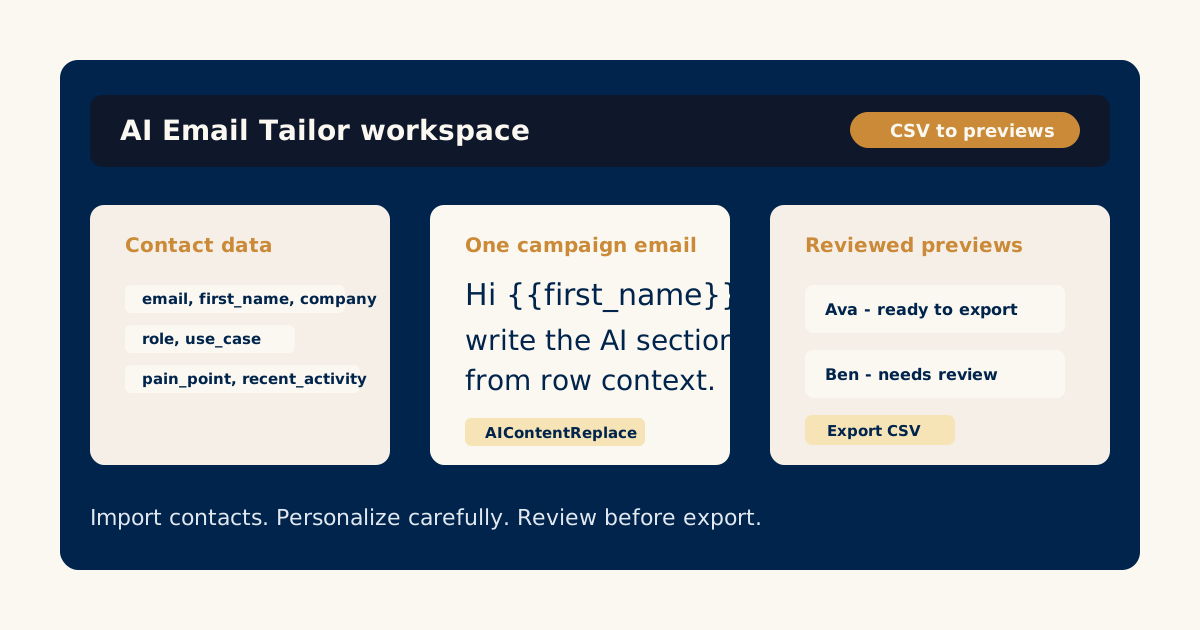
AI Email Tailor is built for this handoff. The current workflow focuses on generating recipient-specific email previews, reviewing them, and exporting the ready emails for use in a sending tool, CRM sequence, or mail merge process.
That makes export a quality step, not just a download button.
Know what the next tool needs
Different campaign tools expect different columns, but most workflows need the same core pieces:
- Recipient email.
- Subject.
- Email body.
- Recipient name or company.
- Review status.
- Any original fields needed for filtering or segmentation.
AI Email Tailor’s export flow is useful because reviewed drafts can carry both the generated email content and the source row context. That gives the next system what it needs without forcing the team to copy and paste one email at a time.
Keep review status in the export
Not every generated draft should be treated the same. Some are ready. Some need edits. Some may need to be excluded until the contact data is fixed.
Keep review status visible so the campaign operator can avoid sending unfinished drafts.
Useful statuses include:
- Ready to export.
- Needs review.
- Edited.
- Reopened.
The exact labels matter less than the habit: do not flatten all AI output into one “send it” pile.
For the review checklist, read how to review AI-generated email previews.
Export the subject and body separately
Many sending tools want the subject and body in separate fields. That also makes QA easier because reviewers can scan subject lines without opening every body.
Before export, check:
- Does each subject line match its body?
- Are there missing subjects?
- Are greetings duplicated?
- Are line breaks readable?
- Are links present only where intended?
This is especially important when the email template uses a subject line plus a dynamic body section.
Preserve source fields for debugging
If a generated email looks odd later, the team needs to know what data shaped it. Keep useful source columns in the export, especially company, segment, role, use case, and pain point.
Source fields help answer:
- Why did this draft mention this context?
- Was the CSV row incomplete?
- Did the template instruction overreach?
- Should this contact be in a different segment?
That context turns review from guesswork into a fixable workflow.
Use small exports before large exports
Before exporting a full campaign, export a small reviewed batch and load it into the next tool. Confirm that the subject, body, and recipient columns map cleanly.
Then check one or two records inside the sending tool itself. Formatting can change when content moves between systems, especially with line breaks, HTML, or links.
The guide on creating personalized campaigns from CSV contact data explains how to keep the source file clean before it reaches export.
Treat export as the handoff, not the finish line
Export-ready does not always mean send-now. It means the email content is reviewed and structured enough for the next campaign step.
That next step may be:
- Importing into an email platform.
- Loading drafts into a CRM sequence.
- Sending a test email.
- Sharing a CSV with a client for approval.
- Running one more compliance or brand review.
The point is to make that handoff calmer. A reviewed export saves time because the campaign operator is not sorting through raw AI drafts at the last minute.
Read more AI Email Tailor workflows before preparing your first full-list export.
Try the workflow
Start with one real campaign email.
Bring a contact CSV, write the core message once, and use AI Email Tailor's preview and review flow to decide what is ready to export.
Related AI Email Tailor guides
Keep improving the campaign workflow.
 Review Workflow
How to Review AI-Generated Email Previews Before Export
A review checklist for AI-generated recipient emails: check context, tone, accuracy, repetition, and export readiness.
Read the guideCSV CampaignsHow to Create Personalized Email Campaigns from a CSV
A practical guide to turning CSV contact data into personalized campaign email drafts without treating every recipient the same.
Read the guideEmail TemplatesHow to Write an AI Email Template with Dynamic Sections
Learn how to write one campaign email with controlled AI-editable sections, stable copy, and useful contact-field context.
Read the guide